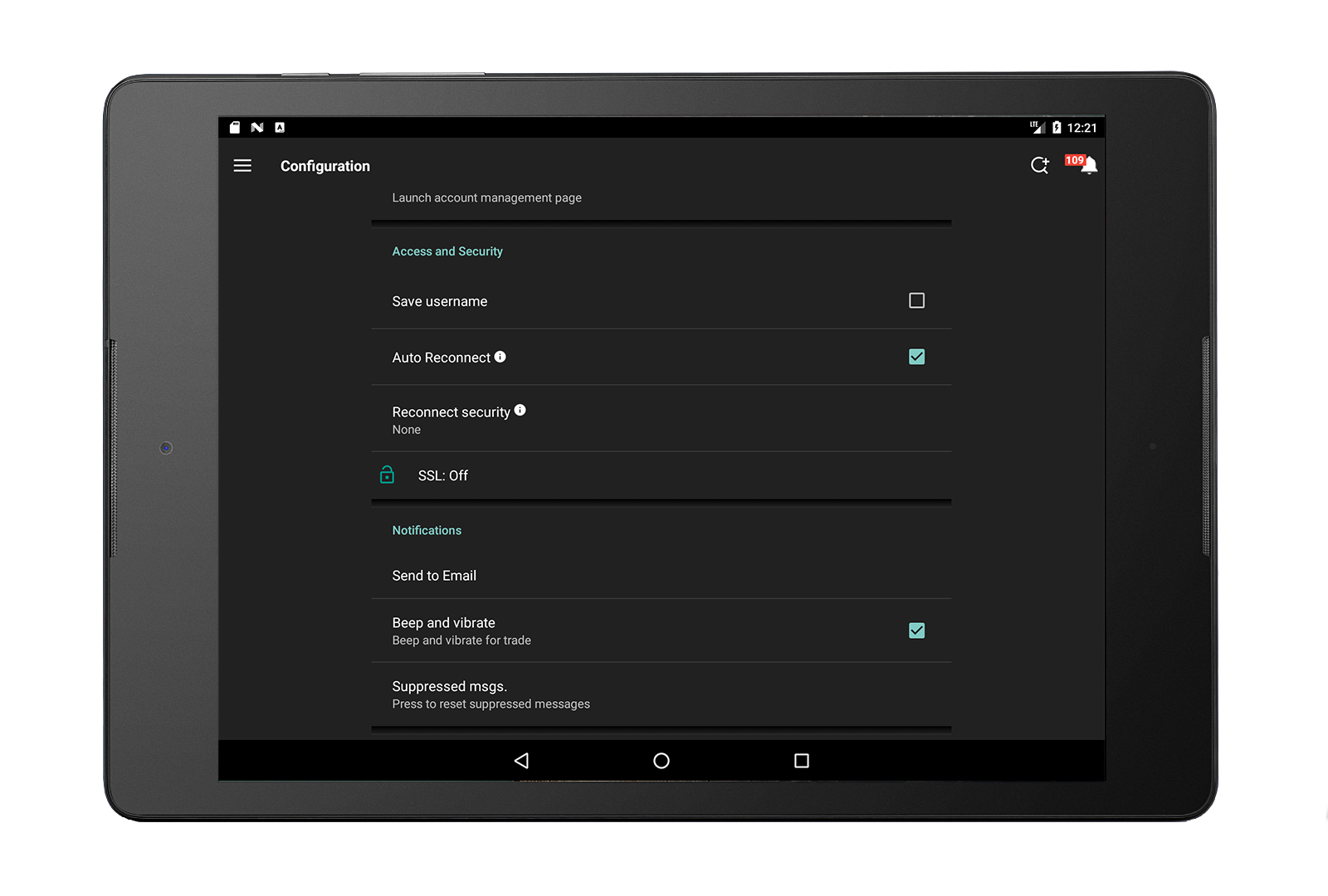
| Account Management |
Tap to launch Account Management. If you have logged into IBKR Mobile, you will be logged into Account Management. |
| Access & Security |
| Save username |
Toggle on to have IBKR Mobile save your username on the login screen. |
| Auto-reconnect |
Enable to enjoy a 20-minute grace period during which time you will be reconnected to your trading session without having to log back in. If disabled, you will be reconnected in Read-Only mode (if enabled). Otherwise you will have to perform the full login process. |
|
Read-Only Access
|
Enable to view key account metrics without having to log in. Trading is disabled in read-only mode.
|
|
Reconnect Security
|
Display only. Tells you if you have enabled Fingerprint Access for 30 hours of secure trading access.
|
|
SSL
|
Display only. Tells you if you have enabled SSL encryption for an extra layer of security. Enable from the login screen. Tap for certificate information.
|
|
Notifications
|
|
Send to Email |
Enter the email address that will be used for alerts and notifications. |
|
Beep and vibrate
|
Select to hear a beep when an order fills. |
| Suppressed msgs. |
Tap Reset to show all application messages. This resets messages that you had previously elected to hide. |
|
Display
|
|
Sync columns on all watchlists
|
When enabled, changes you make to columns on any one Watchlist will automatically be made on all Watchlists.
|
| Daily P&L |
When enabled, Daily P&L includes P&L for all current positions in addition to the new position P&L. When disabled, it shows only new position P&L for the current day (as defined by the time zone of the device) and label includes (N) to distinguish. |
| Daily P&L Timezone |
Elect to use "instrument-specific reset time." If enabled, the P&L of an instrument that closes today and reopens tomorrow will be reset 5 minutes before midnight, and the P&L of an instrument that reopens today and closes tomorrow (for tomorrow's trade date) will be reset 5 minutes before it reopens. |
|
Show Company name
|
When enabled, the company name will be displayed below the symbol.
|
|
Show Exchange codes
|
If unchecked, the codes for all exchanges quoting the instrument will be displayed directly under the last price in the Instrument Details screen. Tap the "?" to see exchange code definitions.
|
| Show Forex data in 1/10 pips |
When enabled, precision for Forex quotes is increased from 1/2 to 1/10 pip. |
| Allow Forex trading in 1/10 pips |
When enabled, you can submit Forex orders in more precise 1/10 pips (vs. traditional 1/2 pip). |
|
Auto-roll futures
|
Enable to automatically roll expired futures data lines to the next lead month. This affects data only, not orders.
|
|
Cloud
|
|
Save Watchlists to Cloud
|
Enable to be able to access Watchlists from other devices.
|
|
Watchlist Import
|
Tap to import Watchlists from your desktop platform and other mobile devices.
|
|
Application
|
| Device name |
The name of your device. |
|
Language
|
The default device language.
|
|
Application theme
|
Tap to toggle the theme between light and dark.
|
|
Back button behavior
|
Specify whether using the device "back" button will exit the application, or show the sidebar.
|
| Simplified user interface |
Enable to use classic buttons in place of sliders to improve accessibility. |
| Trouble Reporting
|
|
Upload diagnostics
|
Use to upload a diagnostics file to IB.
|
|
Debug mode
|
When enabled, will show "Upload diagnostic" in all menus and will include more data in logs.
|
|
Extended log
|
Will include more data in diagnostics log.
|
|
Last farm
|
Shows the last data farm being used.
|
|
Server version
|
Shows the version of the server being used.
|