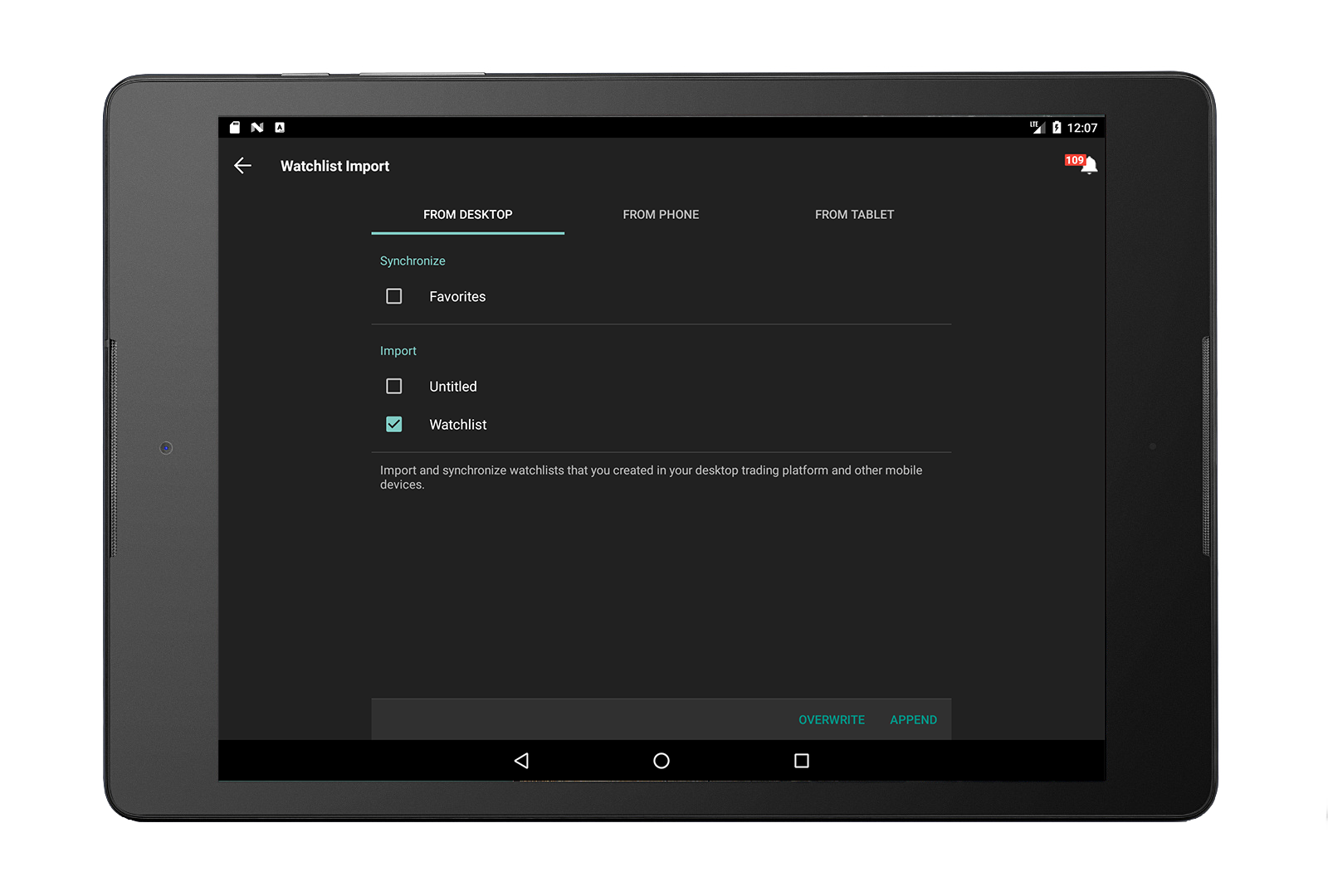
Import and synchronize watchlists that you created in your desktop or other mobile versions of TWS, and that you have saved to the cloud.
Import is a one-time process. Once you have imported a Watchlist, it will be available to you on your mobile device unless you manually delete it.
Synchronize is a repeatable process. Each time you log into your mobile device, you can elect to synchronize the imported Watchlists to ensure they include the same instruments as your desktop or other imported version. Watchlists do not synchronize automatically.
To import a Watchlist
Tap the Menu icon and then tap Configuration.
From the Cloud section, tap Watchlist Import.
Select the device from which to import Watchlists. You can import from one device, then select another and repeat the process.
Select watchlists from the Import list.
Note: If you have previously imported a Watchlist, it will appear in the "Synchronize" list.
Tap OVERWRITE.
To synchronize a Watchlist
Tap the Menu icon and then tap Configuration.
From the Cloud section, tap Watchlist Import.
Select the device that includes the Watchlists you want to sync. You can import from one device, then select another and repeat the process.
Select watchlists from the Synchronize list.
Note: If an entry is grayed out, it is already synced.
Tap Overwrite to replace the Watchlist with the most recent version.
Tap Append to add data from the imported version to the current Watchlist. You may want to choose this option if you have added instruments to your mobile version of the Watchlist and don't want them overwritten.
If you don't see any Watchlists, you may have elected not to save them to the cloud.
In TWS for Desktop, use the Lock and Exit page in Global Configuration to enable both "Save watchlists to cloud" and "Use/store settings on server."
In IBKR Mobile, from the Configuration menu enable "Save Watchlists to Cloud".