You can edit a questionnaire from the Advisor Portal or from within
To edit a questionnaire from Advisor Portal
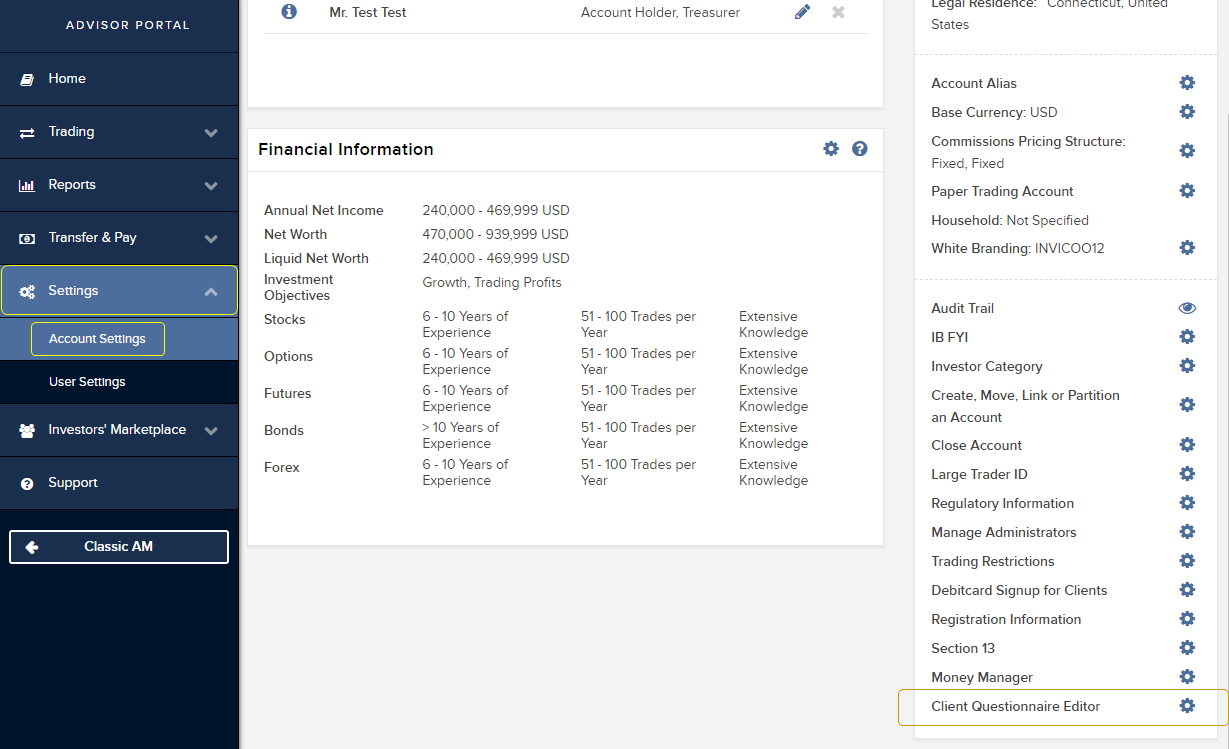
1. Log into the Advisor Portal (Account Management) and navigate to Settings and then Account Settings.
2. From the Configuration panel on the right side of the window, select the Client Questionnaire Editor gear icon.
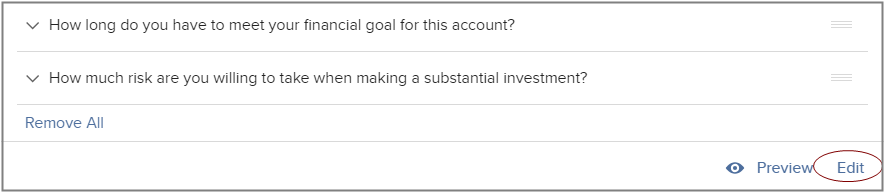
3. At the bottom right of the active questionnaire, click Edit.
To edit a questionnaire from
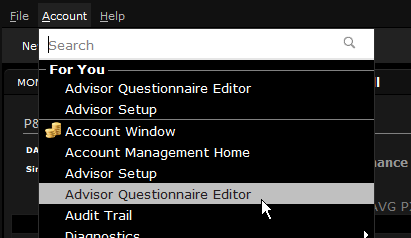
1. From the Mosaic Account menu select Advisor Questionnaire Editor.
2. At the bottom right of the active questionnaire, click Edit.
Manage the content just as you would when creating a new questionnaire.
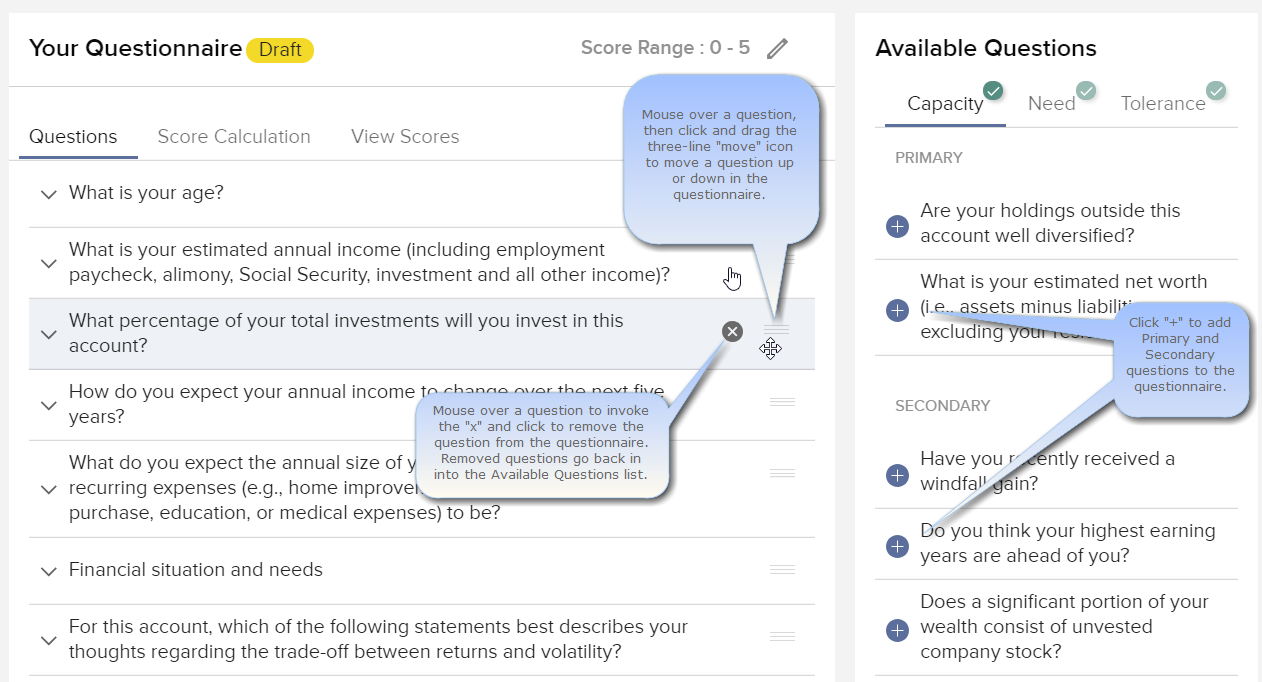
3. Add, remove or rearrange questions as needed.
4. Click the "down" arrow to expand a question and change the score values.
5. Click Save at the bottom of the page to save your draft. Click Make Active to activate the questionnaire so you can distribute it to clients.