Each Advisor can have one active questionnaireMake a questionnaire active by clicking the Make Active button at the bottom of the saved version.. Distribute the active questionnaire to clients via email through your Advisor Portal (Account Management) Message Center.
Note: You must
To approve the message center template
1. Log into the Advisor Portal (Account Management) and select Classic AM from the menu panel.
2. In Classic AM, From the Support menu select Message Center.
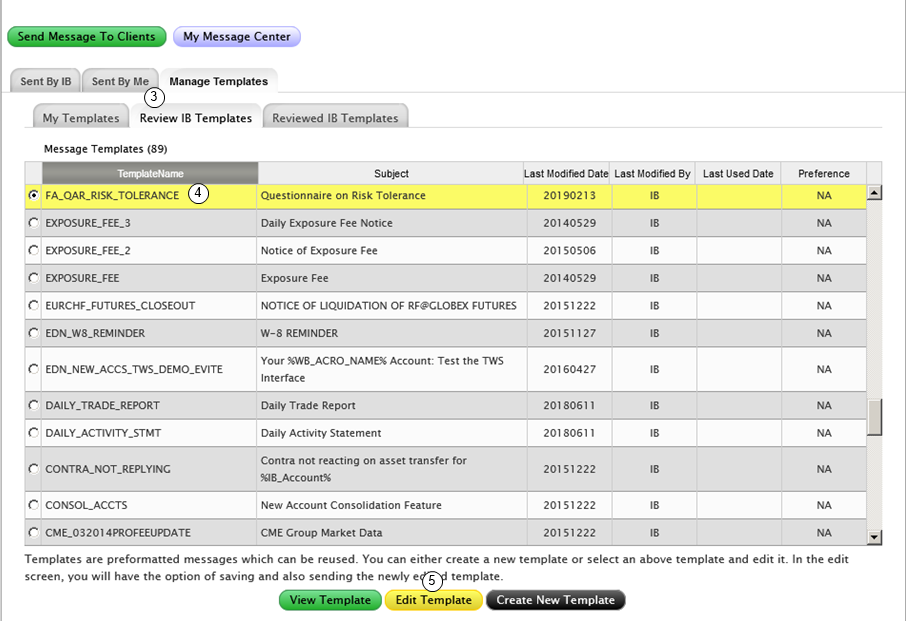
3. Select Manage Templates and then Review IB Templates.
4. From the list of IB message templates, select FA_QAR_RISK_TOLERANCE.
5. Click Edit Template.
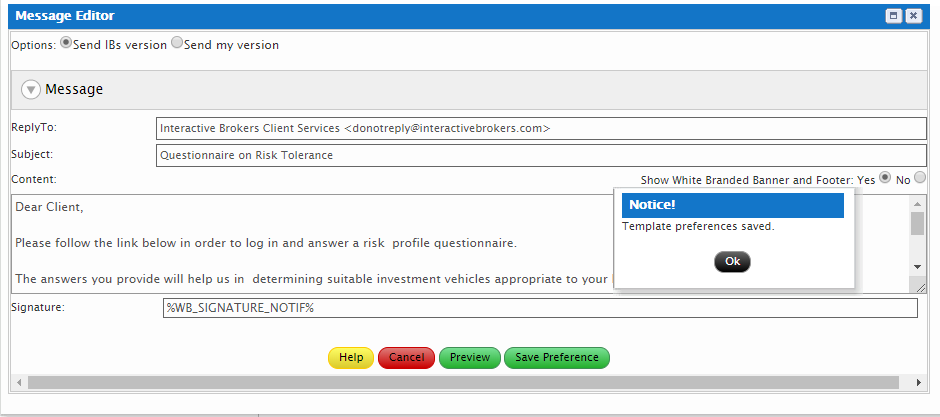
6. From the Message Editor click Save Preference. The template is now available for you to distribute an active questionnaire to clients.
To distribute an active questionnaire
1. Log into the Advisor Portal (Account Management) and select Classic AM from the menu panel.
2. In Classic AM, From the Support menu select Message Center.
3. Click “Send Message to Clients” to open the Message Editor.
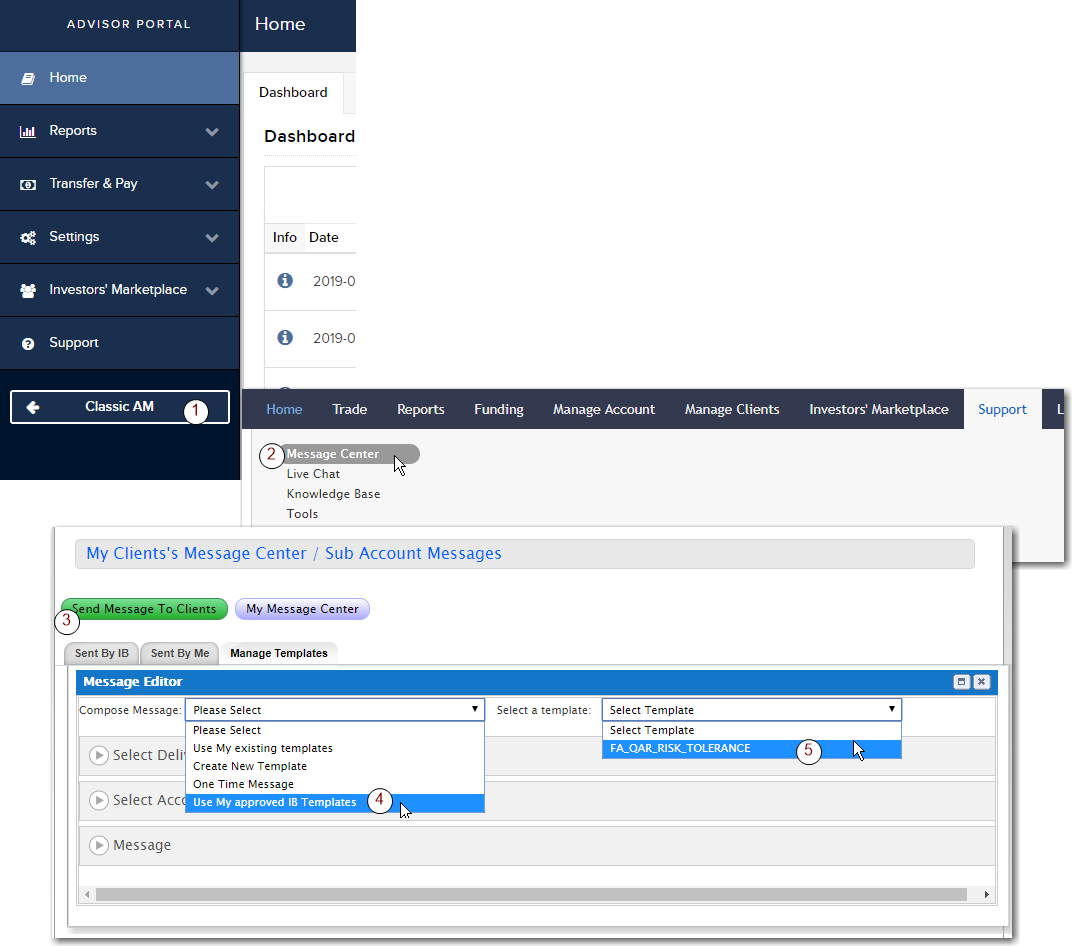
4. From the Compose Message list, select Use My approved IB Templates.
5. From the Select a template list, select the Risk Tolerance questionnaire (FA_QAR_RISK TOLERANCE).
Note: If you do not see the FA_QAR_RISK_TOLERANCE template, you need to approve the template.
Next specify the delivery method and specify which clients accounts will receive the questionnaire.
Note: For newly-added FA client accounts, it takes up to one full business day from the time the account is approved before it will be visible in the Select Accounts section of the Message Editor.
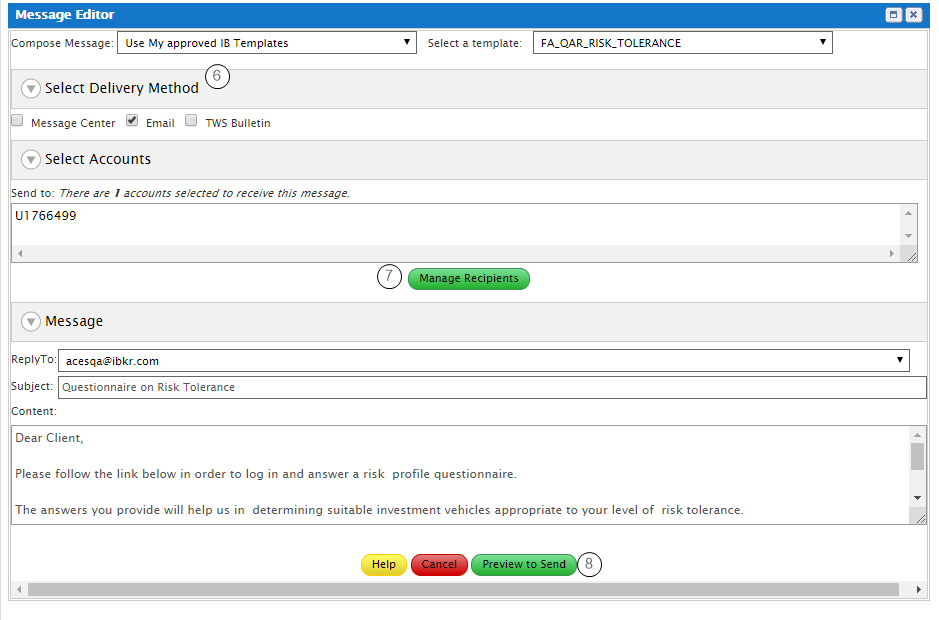
6. From the Select Delivery Method section, check any or all delivery methods.
7. From the Select Accounts section, click Manage Recipients and check the client accounts to whom you want to send the questionnaire. When the list is complete, selected accounts are shown in the box.
8. The content of the invitation includes a link for clients to log into their Account Management to complete the questionnaire, and is not editable. Click Preview to Send and from the preview, send the invitation.
Note: The questionnaire is available to recipients 24 hours after it is sent.