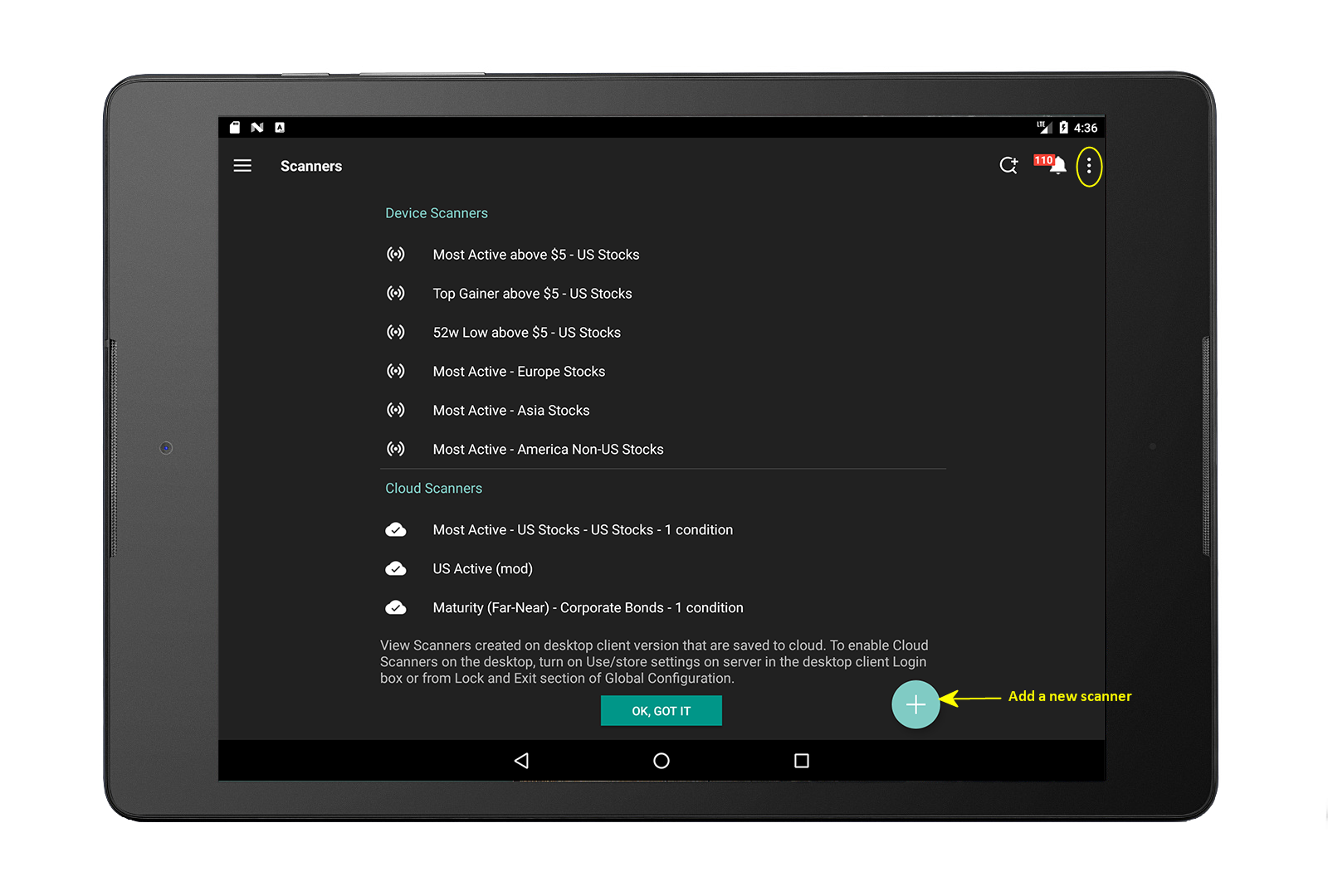
From the main Scanners page, tap the overflow icon and select Edit Page.
To delete a scanner: Select the scanner(s) you want to delete, and tap the garbage can icon at the top of the page. Scanner is deleted with no confirmation message.
To re-order scanner list: Tap and hold the three-line icon to drag the scanner up or down in the list.
Create a new scanner
Tap the Menu icon and then tap Scanners.
At the bottom of the page, tap the blue "+" icon.
Select an region/instrument type pair, e.g., US Stocks, Europe Futures, Asia SSFs etc.
Tap to select a scanner type. Note that available scanners are based on the selected region/instrument.
Define optional filters (such as price range, minimum volume and P/E Ratio etc) and then tap Save.
To edit a device scanner
You can edit parameters in Device scanners. You cannot edit Cloud scanners from your mobile device.
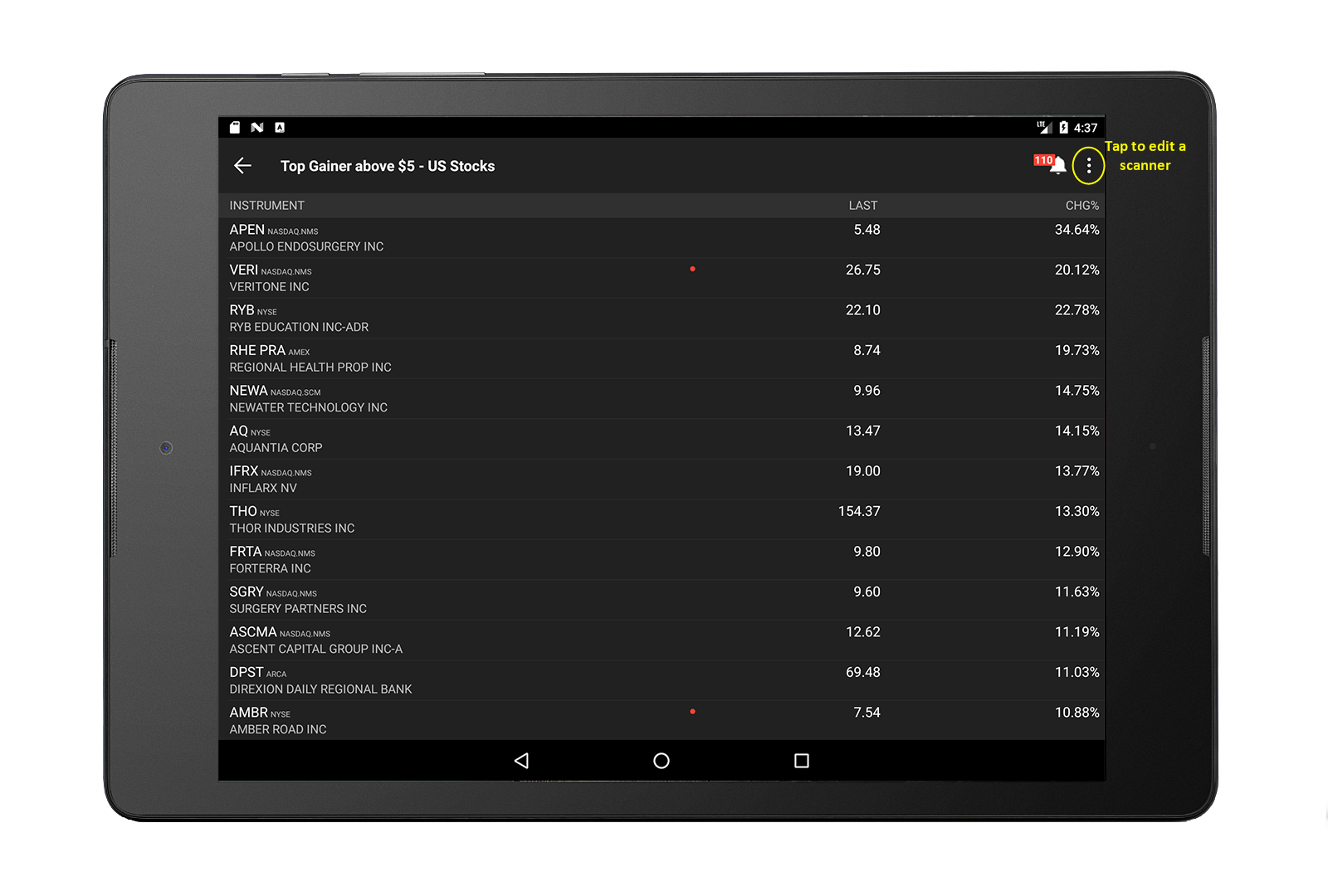
Tap a scanner to open for editing.
Tap the overflow icon and select Edit Scanner.
Modify filter criteria.
Tap Save to save and view the current Market Scanner.
View Instrument Details
Within any scan, tap an instrument to view the instrument's Instrument Details.
 and then tap Scanners