
If you have a master account or any other multiple-account structure, including linked accounts, many of the pages you access in Account Management, including the Home page, allow you to select or change the account in which to perform a given task. On these pages, you will see the Account Selector appear at the top of the page:
Within the Account Selector, there are several ways to search for and select accounts:
If you choose to search by Account Alias and there is no account alias associated with any client or sub accounts, the Account ID + Account Title will be displayed instead.
On some Account Management pages, you can also search for closed accounts. For example, if you are an Advisor and you want to generate a statement for a closed client account, you can select the Include Closed Accounts check box to display closed accounts in the Account Selector.
There are different varieties of the Account Selector, depending on which Account Management page is currently displayed and what kind of account you have:
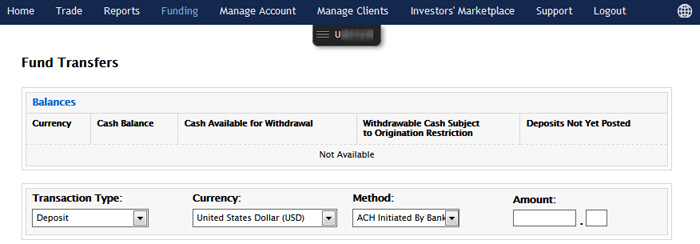
The following image shows the Fund Transfers page with the Account Selector tab for a Fully Disclosed Broker account. The information on the page pertains to only the account number shown on the tab.
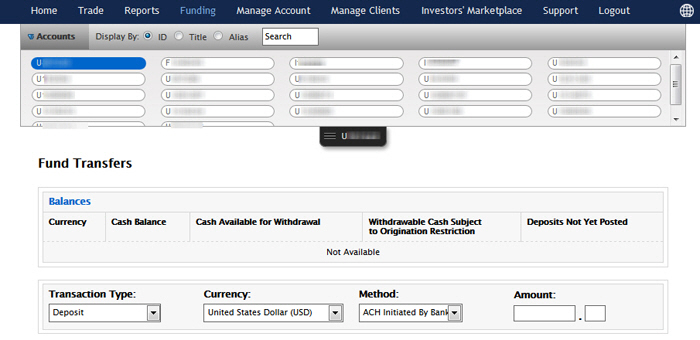
The Account Selector expands after you click the tab, allowing you to select another account:
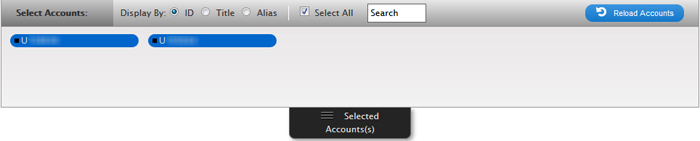
The following image shows the Account Selector for the Activity Statements page in an Advisor account. When you select Reports > Activity Statements from the Account Management menu, the page opens with the multiple selection Account Selector open. Click one or more accounts to select them; the accounts turn blue in the Account Selector.


The following image shows a version of the Account Selector that appears on the Manage Clients > Settings > Account Alias and Manage Clients > Settings > Excess Funds Sweep pages. This Account Selector lets you select more than one account, but you must click the Select Accounts button to load the page with your selected accounts.

To select different accounts on these pages, click the Account Selector tab, then click the Reload Accounts button to clear your selections from the Account Selector.
To search for a household
Click Accounts from the drop-down to search for accounts instead of households.


The following pages in Account Management support searching and selecting by household: